
Features that are easy
-
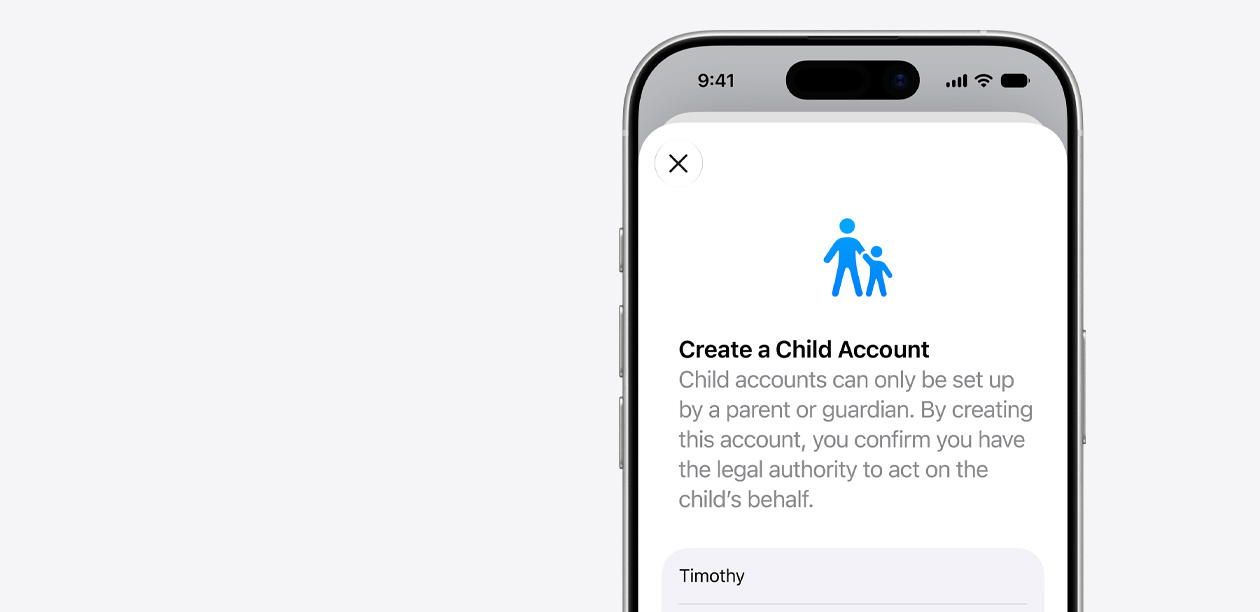
A Child Account enables safeguards based on a child’s age and provides access to powerful parental controls.
-
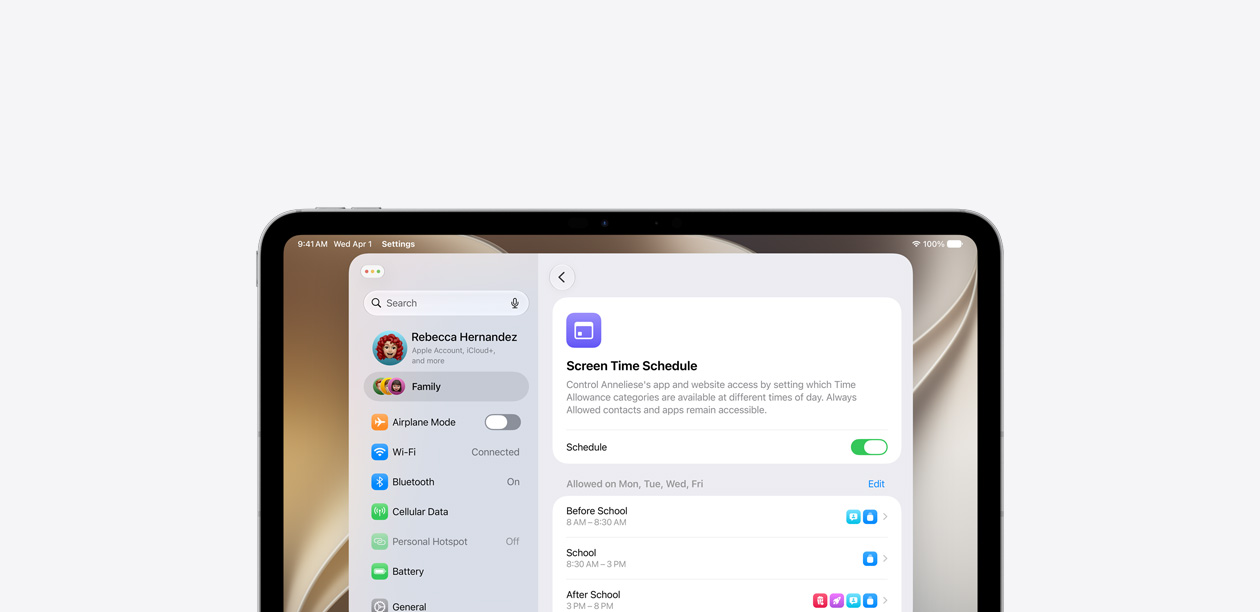
Screen Time shows parents how a child has been using their device — and now provides controls to quickly adjust access.
Coming this fall
-
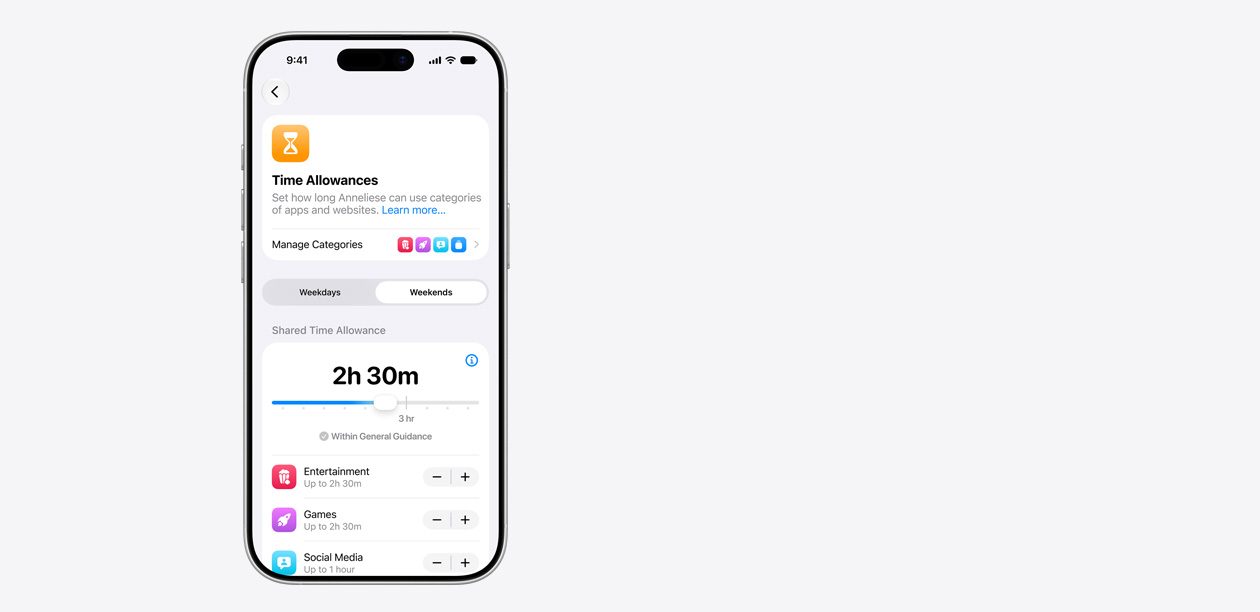
We provide parents with guidance when setting time allowances shaped by expert health research.
Coming this fall
-
Privacy and security are built in from the beginning to help keep children safe.

-
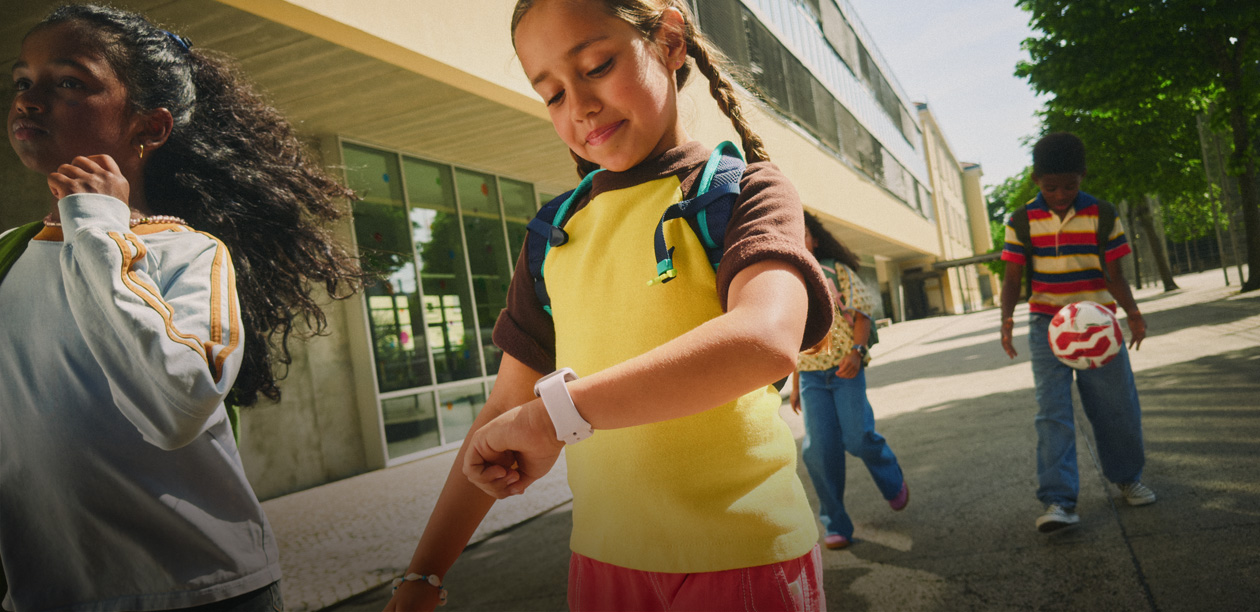
If a child isn’t ready for an iPhone, Apple Watch For Your Kids gives them independence and parents peace of mind.

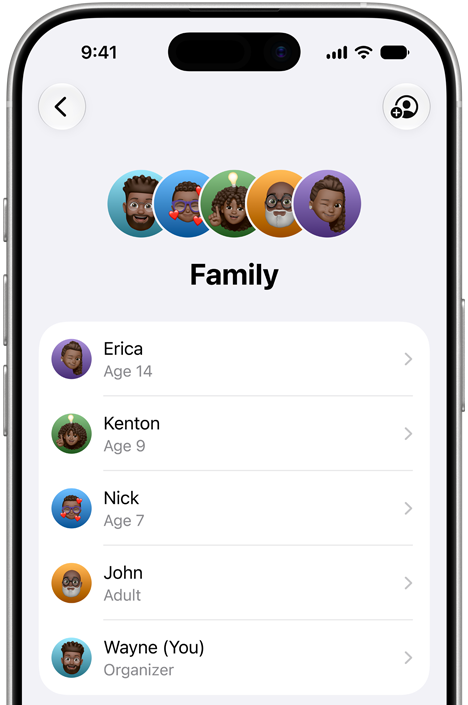
- Open Settings, tap your name, and then tap Family.
- Tap the Add Member button.
- Tap Create Child Account and follow the onscreen prompts.
- Sign in to the Child Account on the child‘s device.
For more information, visit Apple Support.
-
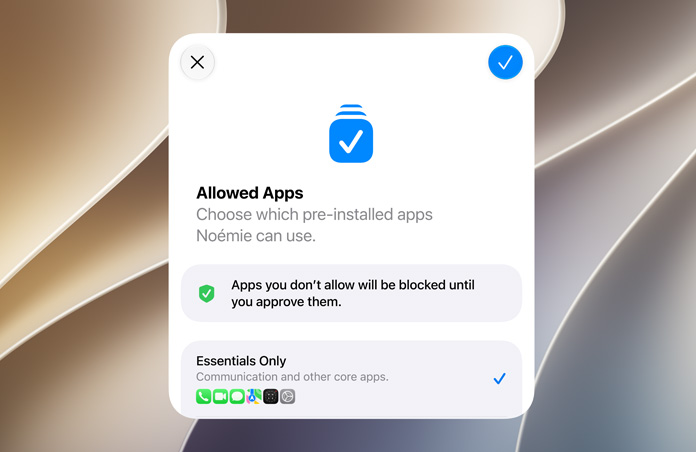
Set a foundation.
In Setup Assistant, parents can choose exactly which system apps to allow. They can select a few essential apps, a recommended set, or the specific ones they want.
Coming to: iPhone, iPad
-
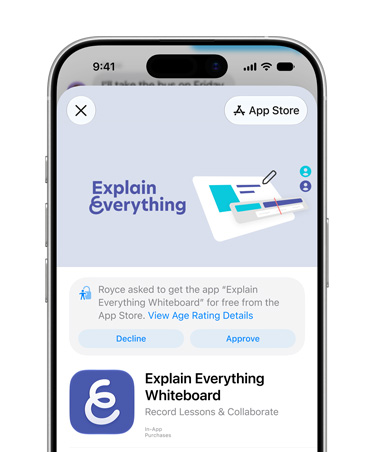
Allow new apps.
With Ask to Buy, children need to ask permission to download or purchase an app or make in-app purchases. Parents will receive the request in Messages and can decide — with helpful context — if it’s the right app or purchase for their child.2
-
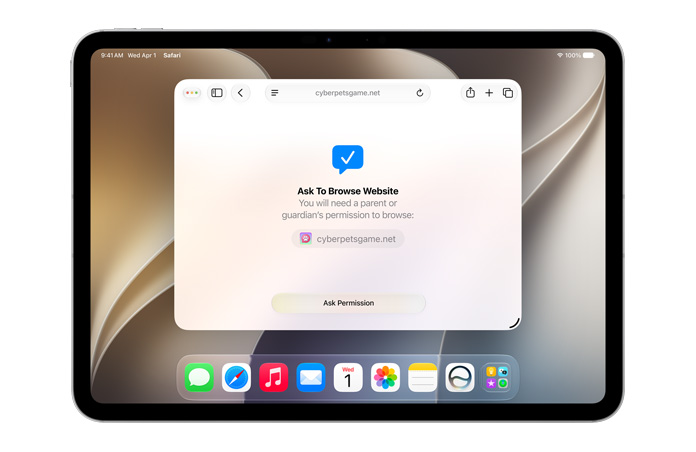
Approve new websites.
Ask to Browse requires children to ask when they want to view a new website using Safari. Parents can take a closer look at the request in Messages before approving.3
Coming to: iPhone, iPad, Mac
-
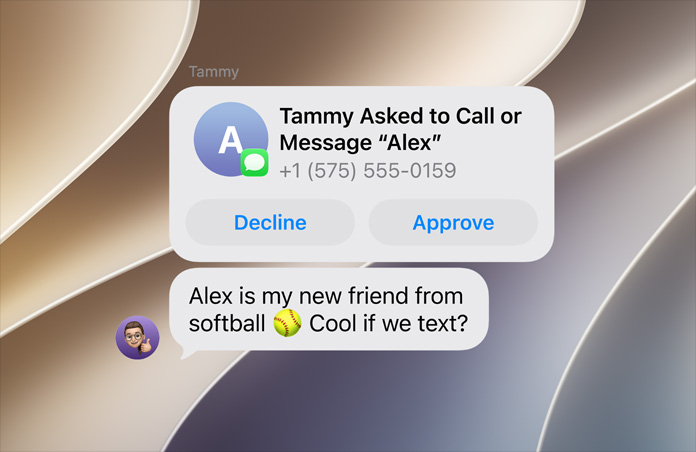
Manage contacts.
As children grow, they want to connect with new people. Children must ask for permission before adding new contacts, and parents can review and approve each request4 before children can communicate with them through Phone, FaceTime, and Messages.
-
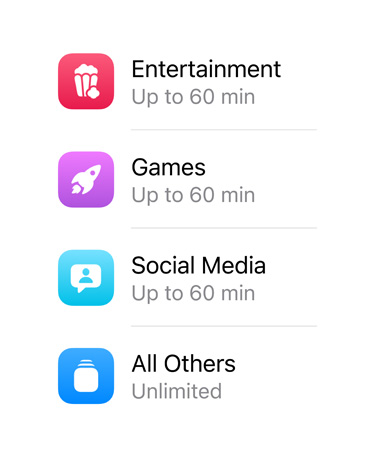
Determine screen time.
Time Allowances give parents more flexible ways to manage the time their children spend in apps across categories, including entertainment, games, and social media. Parents can choose a daily total time that applies across app categories — and also make adjustments to time spent in any particular category.
Coming to: iPhone, iPad, Mac
-
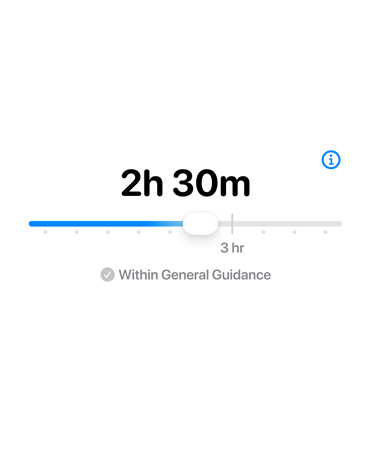
Start off with guidance.
We provide parents with guidance when setting time allowances that is based on a child’s age and shaped by clinical and child development research. Parents can always adjust these settings based on what’s best for their child.
Coming to: iPhone, iPad, Mac
-
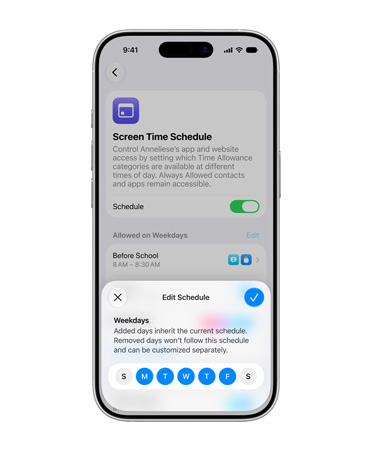
Create flexible schedules.
School days, weekends, and homework time aren’t the same, so parents can now set a schedule and choose which apps are available to their child at different times of day.
Coming to: iPhone, iPad, Mac
-
Easily make adjustments.
Parents can pause access to devices during meals and other times that deserve full attention. And when a child needs a little extra time to finish something, parents can open up access to apps just as easily without dropping any protections.
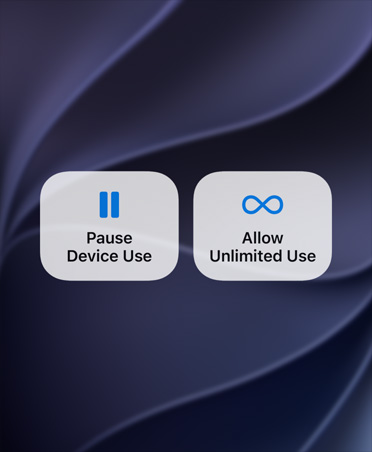
Coming to: iPhone, iPad, Mac
-
Give them more time.
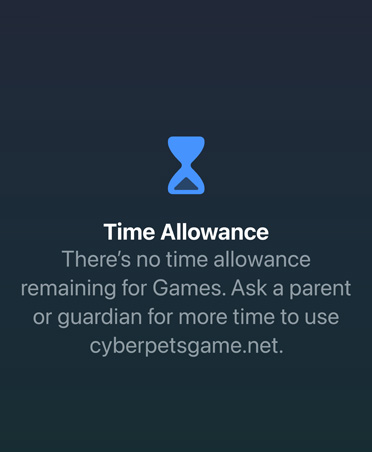
When children reach the end of their time allowance, they’ll get a notification and can ask parents for more time to quickly wrap a conversation or finish an activity.
-
Explore with confidence.
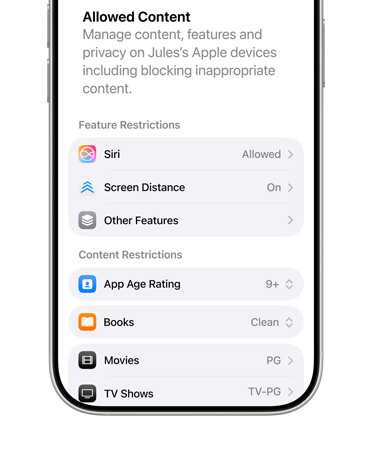
We review each App Store app to check that it does what it says and meets our high standards for privacy, security, and content. Every app has an age rating that helps parents decide whether it’s appropriate for their child.
-
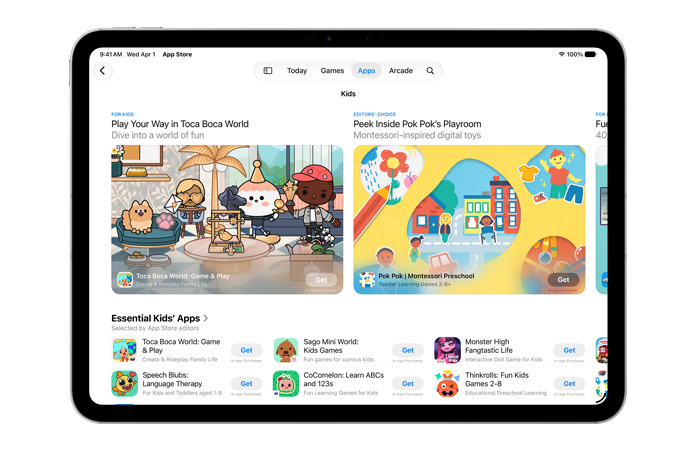
Made for Kids.
This section on the App Store is a curated place to find apps designed for children 11 and under.
-
Customize for their age.
Parents can share the age range of their child with apps in a privacy-protective way. Apps can use this information to tailor age-appropriate experiences for children. Parents can choose how the age range is shared — and change their preference anytime.
-
Know where they are.
With Find My, children can share their location with parents. Even if a child doesn’t have an iPhone, it works with Apple Watch.

-
Get location-based alerts.
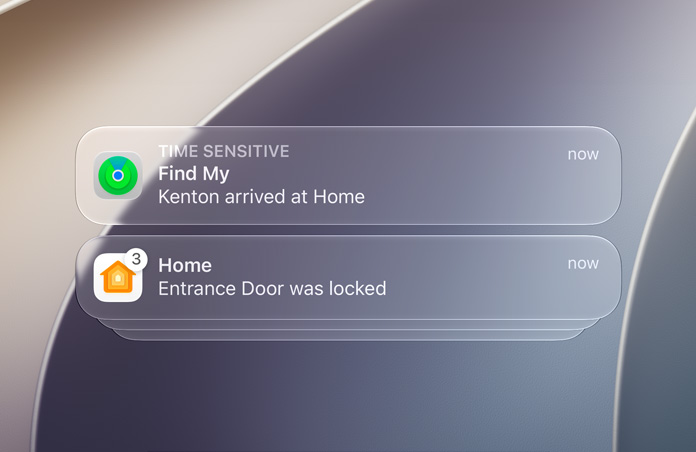
Parents can know where their child is with automatic notifications that alert them when a child arrives at or leaves a particular place, like school. Parents can also create custom alerts for specific locations.
-
Help them communicate safely.
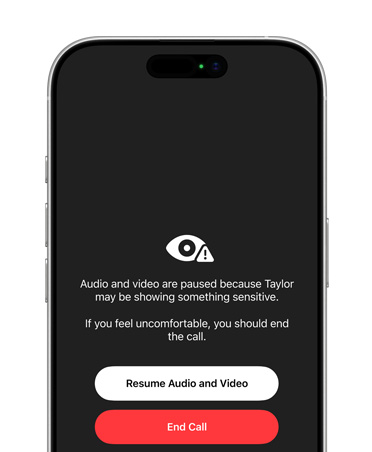
Communication Safety helps protect children from viewing or sharing detected nudity in Messages, FaceTime, and more. It now also intervenes when it detects gore or violence in shared images and videos.
Coming to: iPhone, iPad, Mac, Apple Watch